
Account & Settings
The Account & Settings allows you to manage key information about your organisation, control how Isara interprets your business context, and configure integrations and user access.
Organization Info
This section lets you edit core details about your company:
- Company name
- Business model (B2B, B2C, or both)
These settings help Isara understand the type of customers you serve.

Connections
This area enables you to link Isara with the data sources that power your support operations. By connecting your helpdesk or other conversation platforms, you allow Isara to ingest customer messages, analyse them securely, and generate insights across your organisation.
Once a source is connected, Isara begins importing conversations automatically. Any changes you make to your integrations will affect future data ingestion and processing.

Clicking Add Connections lets you select one of the available integration options and start the guided connection flow for that source.
Product, Service, and Context Tags
Tags help Isara categorise conversations and identify areas of concern in customer monitoring. They are used both in individual conversation analysis and in the higher-level signals Isara detects across your support operations. There are three types of tags
- Product tags represent the parts of your product or service that customers interact with.
- Support tags represent operational issues such as processes, training, or policies.
- Context tags represent third-party factors outside of your organisation..
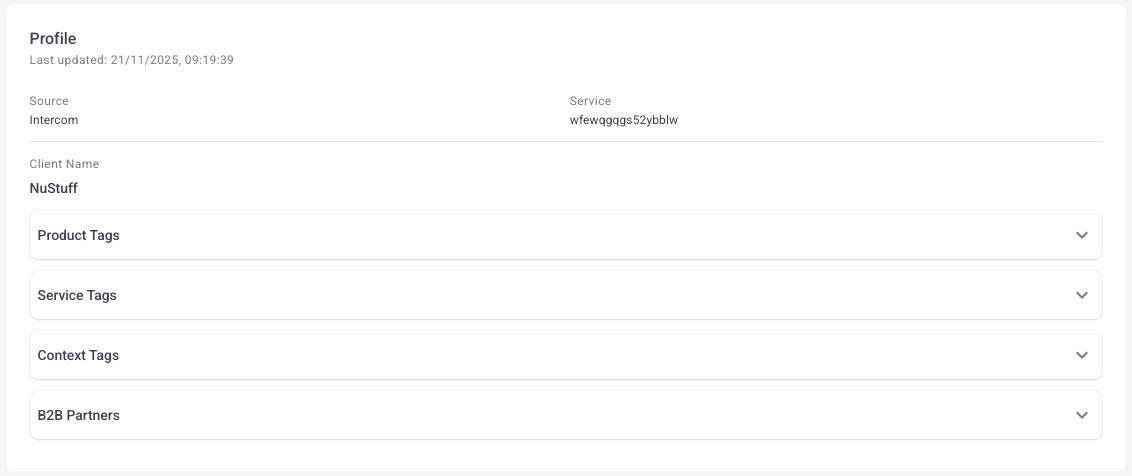
You can open the detail of each area of concern by clicking the down arrow.
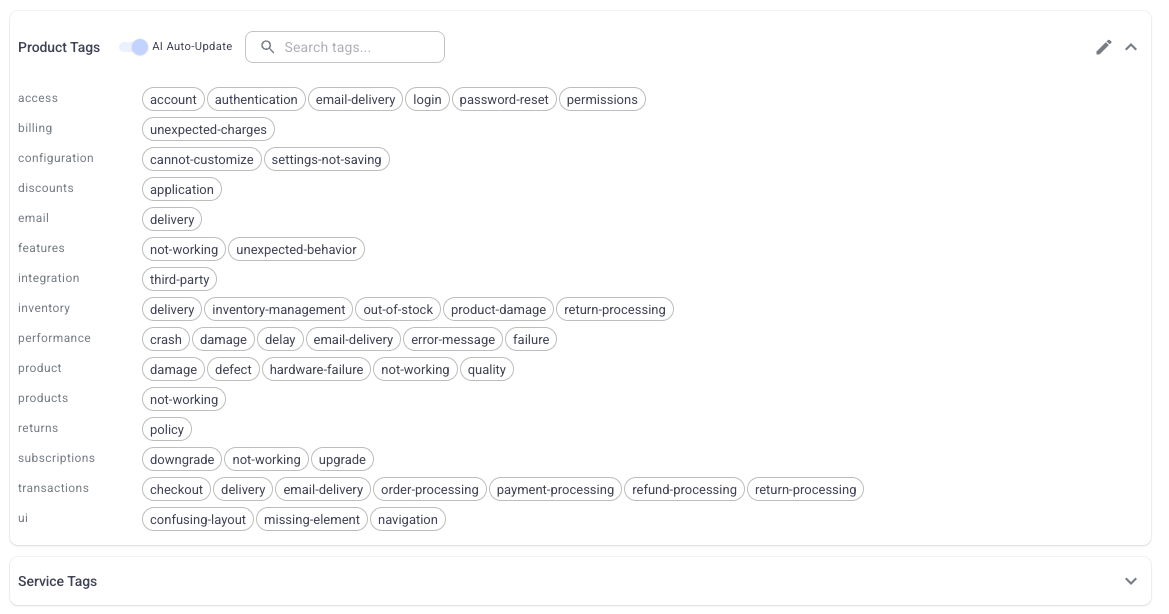
You can edit your tags or areas of concern by clicking the edit pen icon.
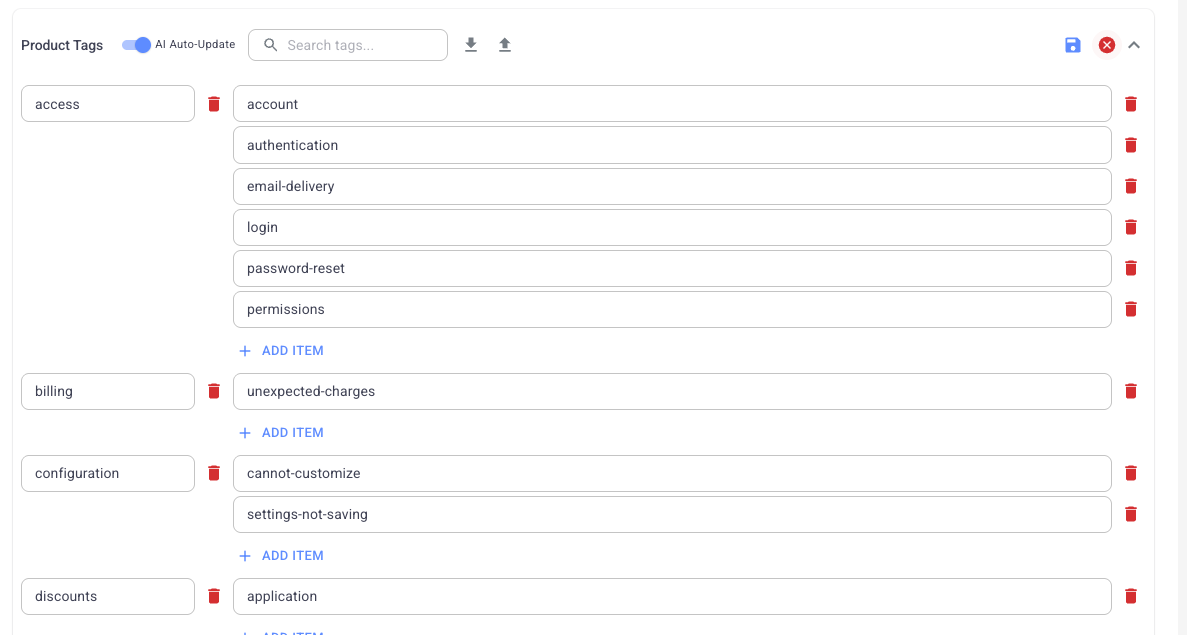
You can add tags and categories by clicking the Add tags or Add categories options.
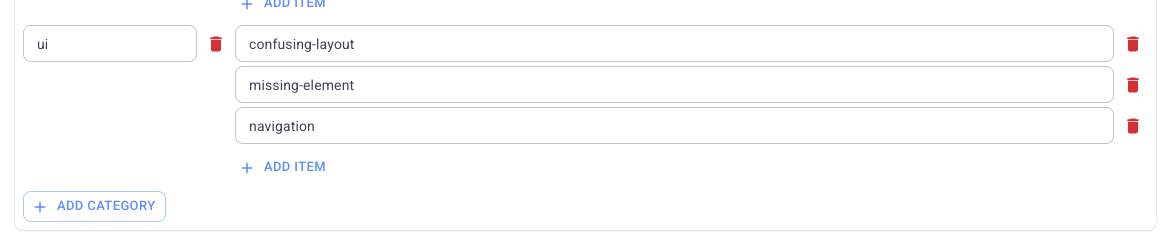
You can delete tags by clicking the red bin icon.

You can download the current list of tags by clicking the download button (down arrow) and you can upload a list of tags by importing a CSV file (up arrow). You can view the required CSV format by first downloading your current list of tags.

Please do not forget to save your changes by clicking on the save icon > the little blue icon at the top right corner

- Your changes will apply only to future conversations, not historical ones.
- Isara will attempt to assign these tags intelligently.
- If AI Auto-Update is enabled, Isara may refine tags when appropriate.
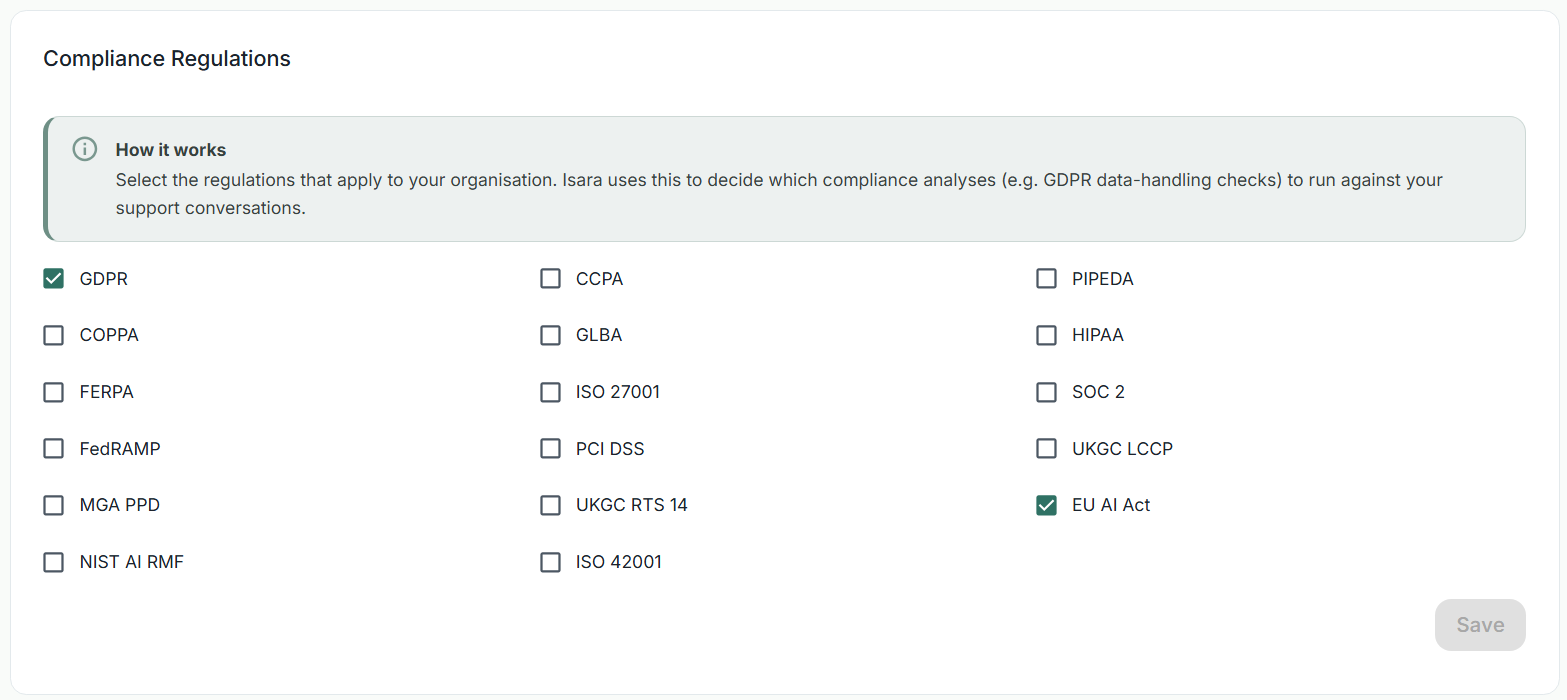
Compliance Regulations
Select the regulations that apply to your organisation. Isara uses this to decide which compliance analyses (e.g. GDPR data-handling checks) to run against your support conversations.
Custom filter configuration
Custom Filters allow you to segment your Pulse and Insights data using properties that already exist in your connected helpdesk or CRM platform. This is useful when your team uses platform-level fields to organise conversations by team, pipeline stage, product line, region, or any other category that matters to your business.
When Isara connects to your platform, it pulls in the fields and properties associated with your conversations. You can map any of those fields to a named filter in Isara, which then becomes available as a filtering option across your Pulse and Insights dashboards.
Setting up a Custom Filter
To create a custom filter, navigate to Account and Settings and locate the Custom Filters section. Click Add and complete the following fields:
- Provider: Select the data source the field comes from (for example, Zendesk, HubSpot, Intercom, or Freshdesk).
- Provider Field: Select the specific field or property from that platform (for example, Ticket Status, Team, or Pipeline Stage).
- Field Name: Enter the label as you want it to appear within Isara (for example, "Status", "Team", or "Region").
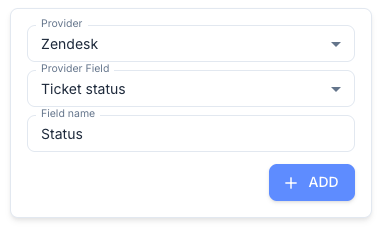
Once saved, the filter will be available in Pulse and Insights for all users in your organisation.
Note: Custom Filters are available on the Growth plan and above.
Attribute Settings
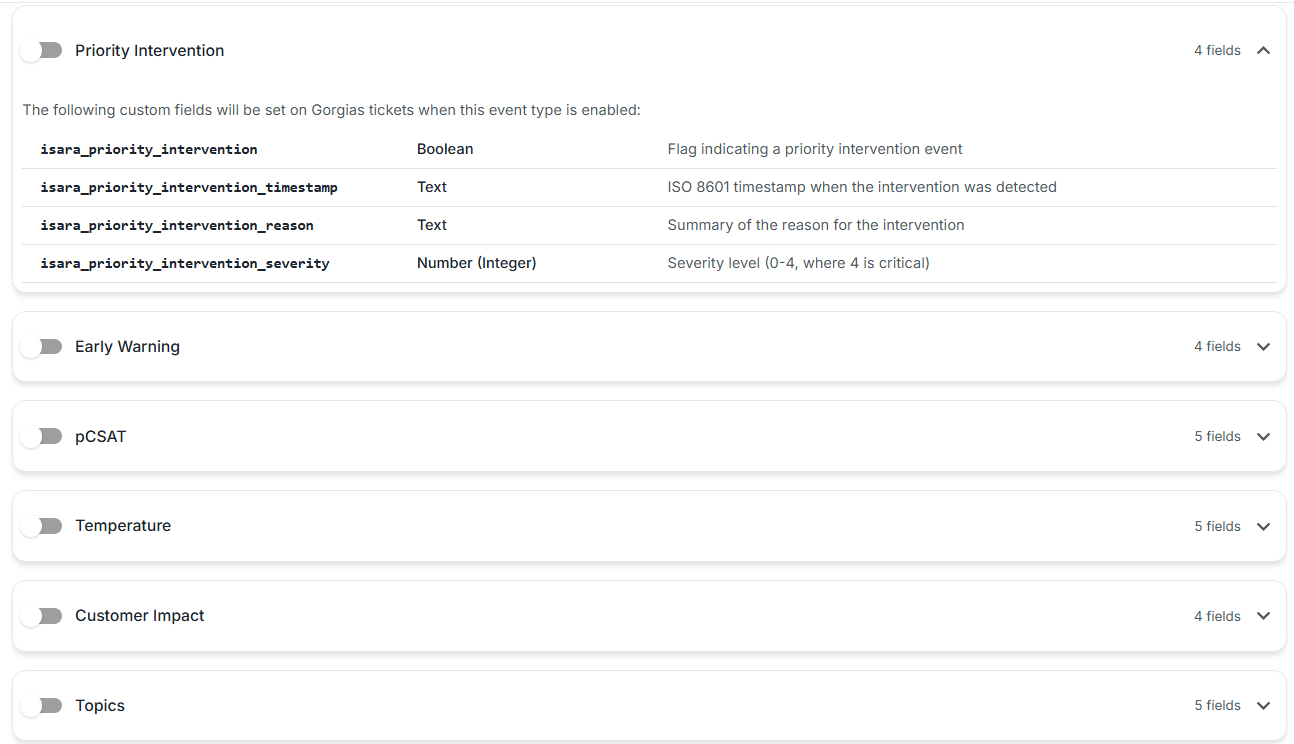
The Attribute Settings section allows you to push Isara's AI analysis values directly back into your helpdesk platform for every analyzed conversation.
By mapping Isara's attributes to your helpdesk's custom properties, you can view Isara's real-time evaluations directly inside your helpdesk tickets.
Isara provides strings and values for the following features:
- Priority Interventions
- Early Warnings
- pCSAT
- Temperature
- Customer Impact
- Topics
How It Works
- Map Your Fields: In the Isara UI, select the custom property in your helpdesk platform that corresponds to each Isara attribute (e.g., mapping Isara's Early Warnings to your helpdesk's custom property for early warnings).
- Enable the Sync: Toggle the switch ON for each feature you want to push to your helpdesk.
- Data Push: Once mapped and enabled, Isara automatically pushes these values to your helpdesk platform for each analyzed conversation.
Plan
This section allows you to manage your subscription and view billing information.
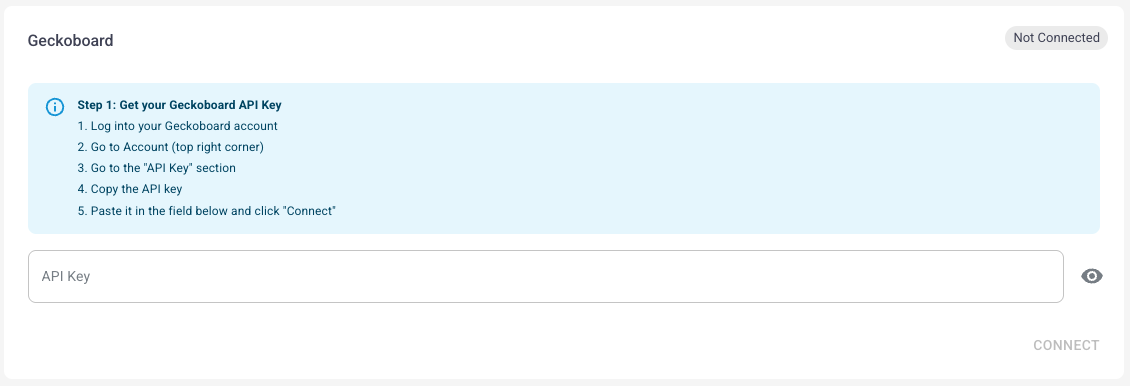
Geckoboard
Here you can connect your Geckoboard account. Once linked, you can send Isara data directly into your Geckoboard dashboards.
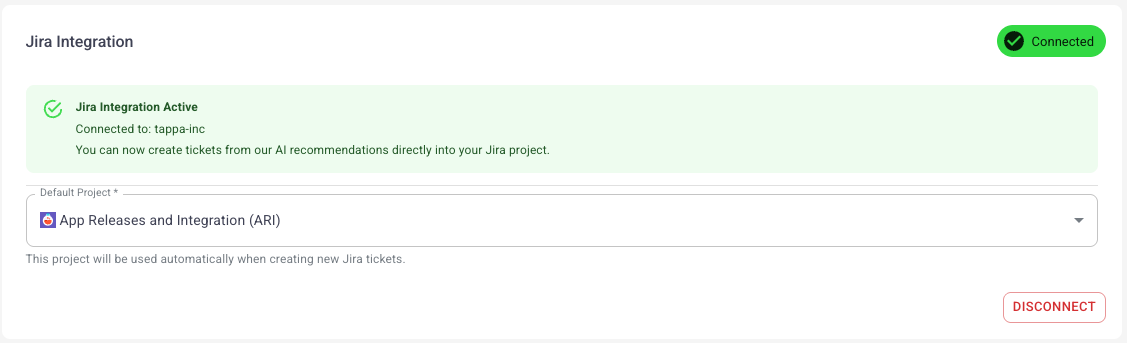
Jira Integration
Link your Jira workspace so you can create Jira tickets directly from Isara’s AI recommendations.
User Management
Manage which members of your organisation can access Isara. You can add users, edit roles, or remove access.
There two types of users in Isara
- Managers can access and edit everything
- Members cannot edit the subscription, cannot add users, cannot add an integration such as Gecko or Jira.

Blocked Tags
If your helpdesk uses tags, you can list any tags that should prevent a conversation from being processed by Isara.
Messages containing blocked tags will be skipped automatically.
This feature is not available on HubSpot as HubSpot does not support tags

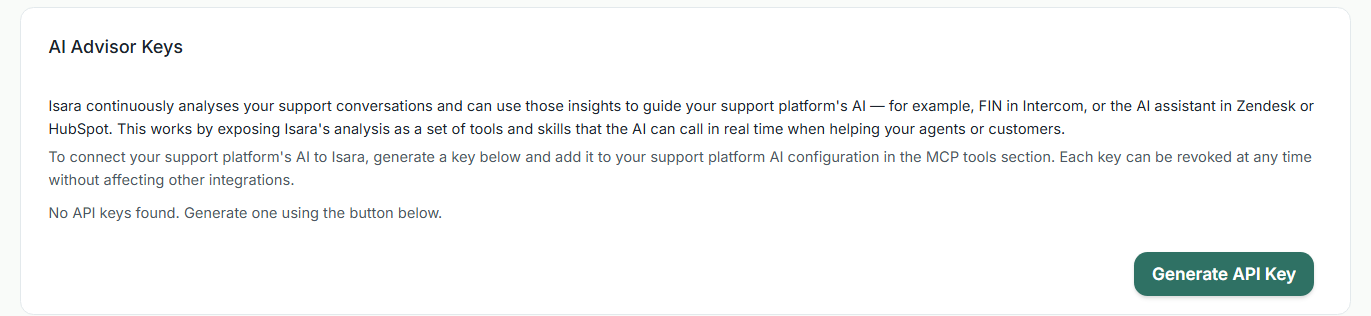
AI Advisor Keys
Isara continuously analyses your support conversations and can use those insights to guide your support platform's AI — for example, FIN in Intercom, or the AI assistant in Zendesk or HubSpot. This works by exposing Isara's analysis as a set of tools and skills that the AI can call in real time when helping your agents or customers.
To connect your support platform's AI to Isara, generate a key below and add it to your support platform AI configuration in the MCP tools section. Each key can be revoked at any time without affecting other integrations.
Updated 4 days ago